With the introduction of Splunk 7.2, a minor change has been made in the installation process. Recall that in Splunk versions 7.0 and previous, the default account of admin/changeme was used during the installation process. In Splunk 7.1, this changed to requiring that a password be set during installation (or user-seed.conf be employed instead). This has been further refined in Splunk 7.2, where a username now must be specified (in addition to setting a password) when Splunk is installed (user-seed.conf is still an option as well).
This screencast will walk you through the new installation process. If you’ve installed Splunk before, it won’t be too much of a surprise.
During the installation, you’ll now be prompted to enter both a username and password:
# /opt/splunk/bin/splunk start --accept-license

This appears to be your first time running this version of Splunk.

Splunk software must create an administrator account during startup. Otherwise, you cannot log in.
Create credentials for the administrator account.
Characters do not appear on the screen when you type in credentials.

Please enter an administrator username: tom
Password must contain at least:
   * 8 total printable ASCII character(s).
Please enter a new password:
Please confirm new password:
# /opt/splunk/bin/splunk start --accept-license

This appears to be your first time running this version of Splunk.

Splunk software must create an administrator account during startup. Otherwise, you cannot log in.
Create credentials for the administrator account.
Characters do not appear on the screen when you type in credentials.

Please enter an administrator username: tom
Password must contain at least:
   * 8 total printable ASCII character(s).
Please enter a new password:
Please confirm new password:
# /opt/splunk/bin/splunk start --accept-license

This appears to be your first time running this version of Splunk.

Splunk software must create an administrator account during startup. Otherwise, you cannot log in.
Create credentials for the administrator account.
Characters do not appear on the screen when you type in credentials.

Please enter an administrator username: tom
Password must contain at least:
   * 8 total printable ASCII character(s).
Please enter a new password:
Please confirm new password:
# /opt/splunk/bin/splunk start --accept-license

This appears to be your first time running this version of Splunk.

Splunk software must create an administrator account during startup. Otherwise, you cannot log in.
Create credentials for the administrator account.
Characters do not appear on the screen when you type in credentials.

Please enter an administrator username: tom
Password must contain at least:
   * 8 total printable ASCII character(s).
Please enter a new password:
Please confirm new password:
Other than that, the installation process is essentially identical. Upon first login, the “first time signing in” message will tell you to use the username you originally created at startup.
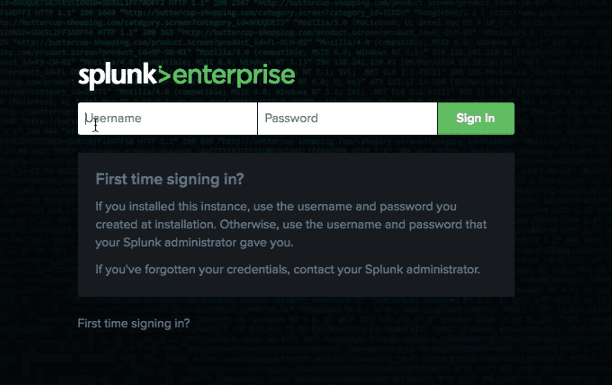
As mentioned, this isn’t a huge change, just something to be aware of when deploying a new Splunk instance. And don’t forget that password! But if you do, we’re here to help.


